SEATING PLANS
WITHOUT THE STICKY NOTES
A worked example for a wedding: the room drawn as it really is, every guest dragged onto a seat, and a clean plan for the venue at the end.
Try it yourself
The sample is live, with made-up guests. Drag a few names around: anything you change stays in your own browser.
The Problem It Solves
The seating plan is the most personal job in planning a wedding, and it usually goes like this:
- sticky_note_2Names on sticky notes, shuffled around a sheet of paper on the kitchen table.
- table_viewOr a spreadsheet, which can list who's on table 4 but can't show who's next to the door.
- forumEach partner has their own idea, and the two versions live in two heads and a group chat.
- calculateEvery change means recounting each table, and redrawing the plan.
- photo_cameraThe venue gets a photo of the paper, then a few corrections by email.
The plan has no single home, so it gets redrawn at every step, and the version the venue prints may not be the one the couple agreed.
The real room
drawn to scale
Two plans
one for each partner
One clean copy
for the venue
All saved as you go.
1Drag guests onto the real room
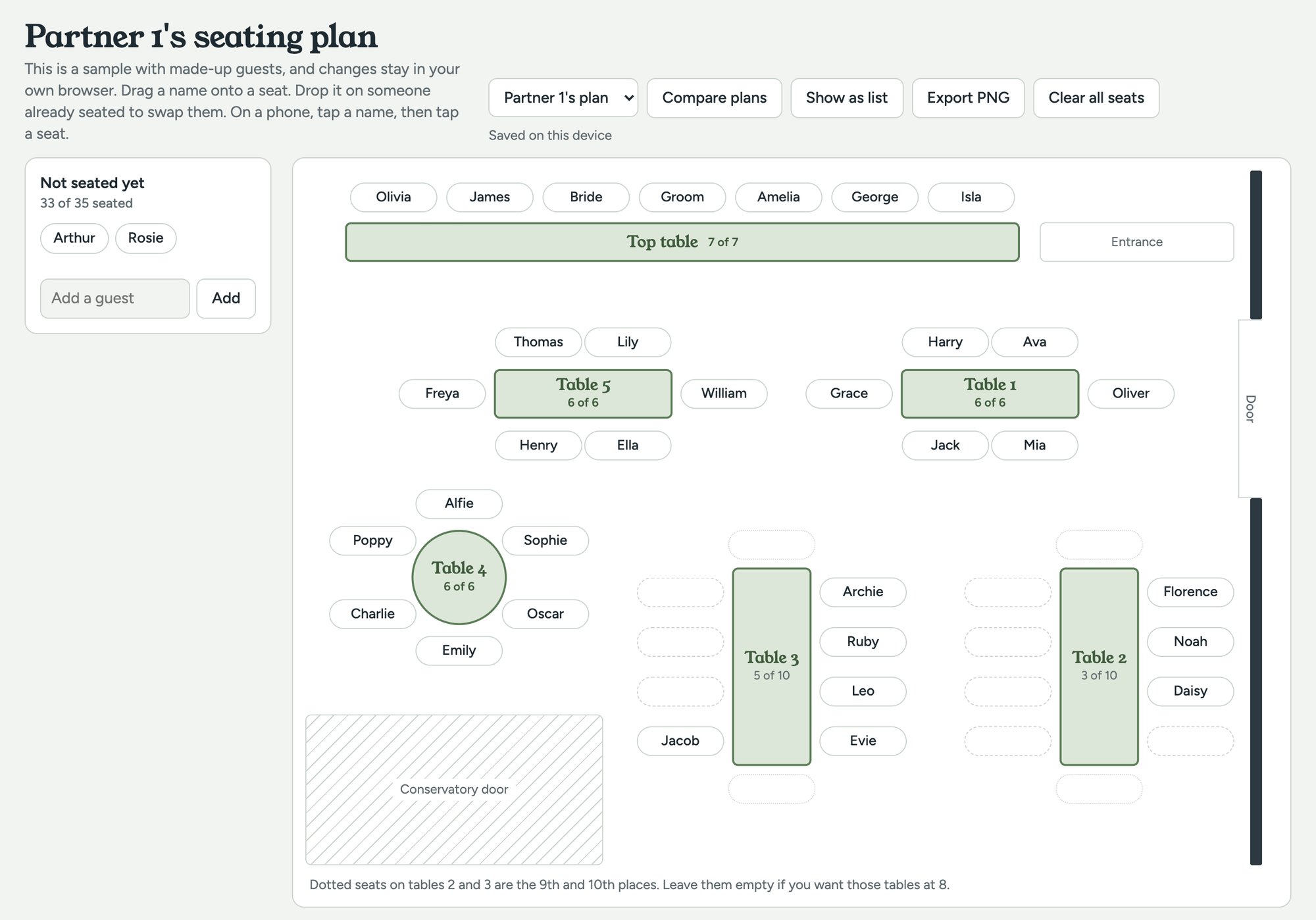
The room is drawn as it really is: the top table, the round and long tables, the entrance and the doors. Every guest is a name you can pick up and put down.
Things worth noticing
- checkThe real room, not a grid. Tables sit where they really are, so you can see who'll be next to the door or the conservatory before the day.
- checkDrop a name on someone to swap them. Drag a name back to the list to unseat them.
- checkEvery table counts itself: “6 of 6”, “3 of 10”. You can see at a glance where there's room.
- checkOptional places are dotted. The 9th and 10th seats on the long tables only count if you use them.
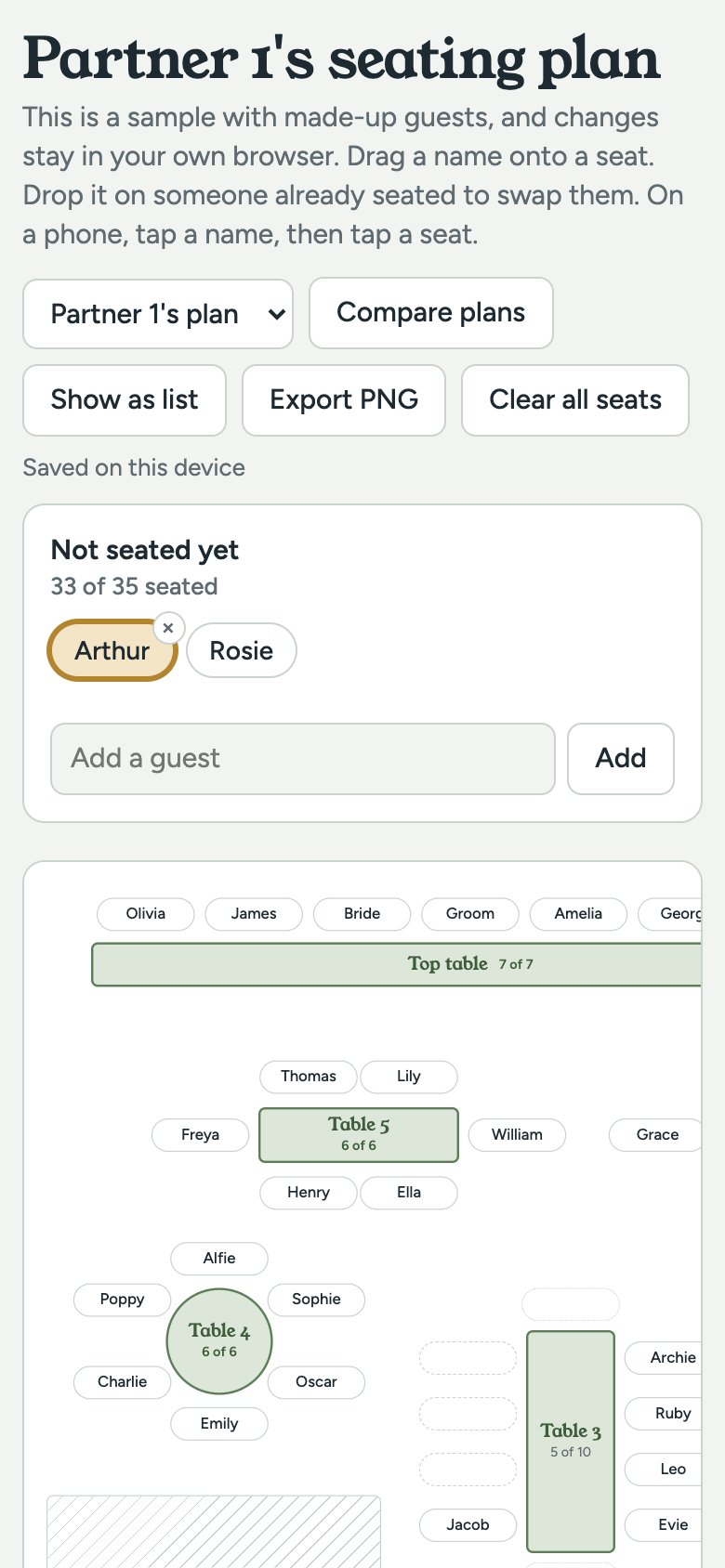
- checkWorks on a phone. Tap a name, then tap a seat. Nothing to install.
- checkLate additions take seconds. Type a name to add a guest; tap the cross to take one off.
2Two plans, then compare
Couples rarely agree first time. So each partner gets a plan of their own, and one button lines them up side by side.
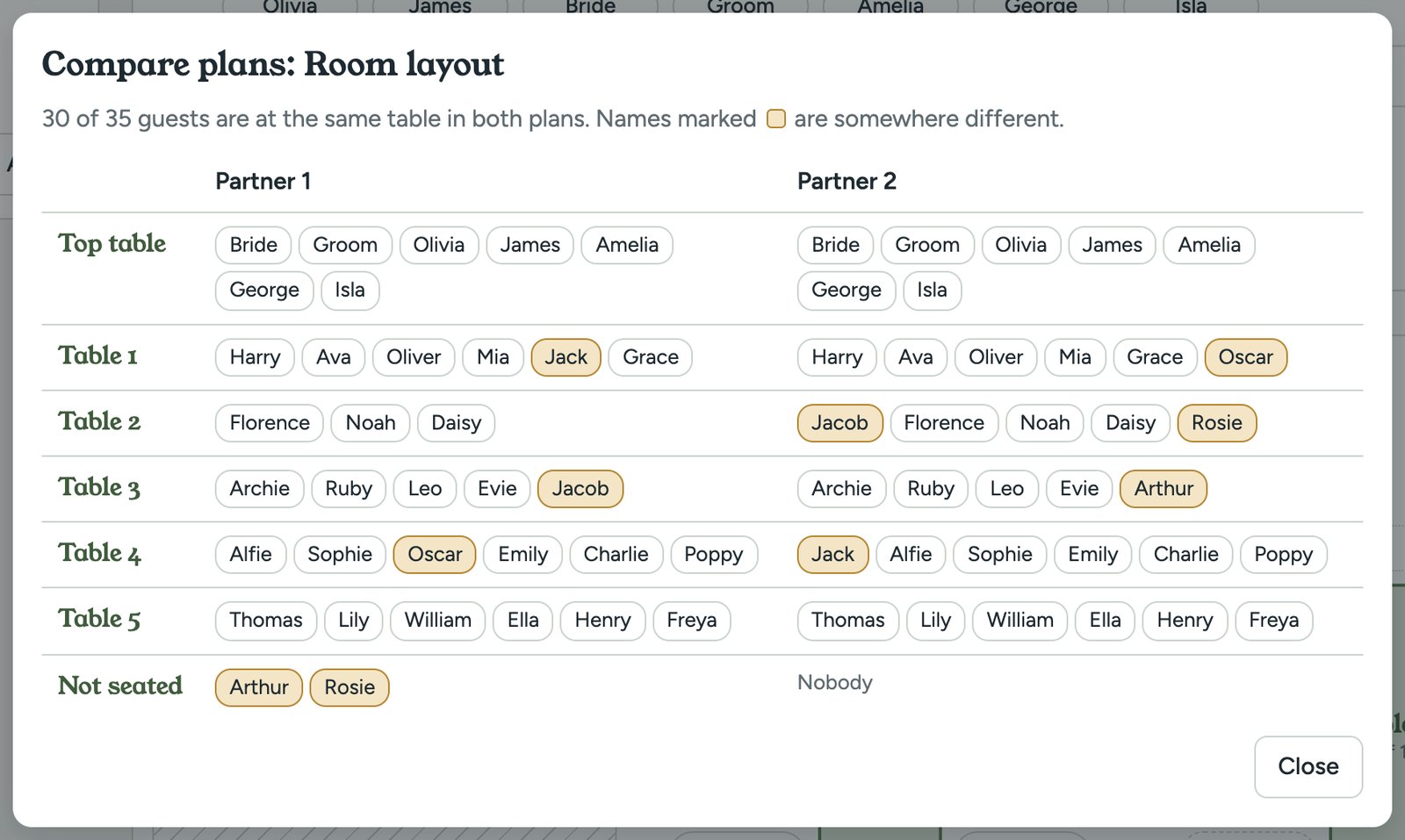
- checkA plan each. Both partners seat everyone their own way, without overwriting each other.
- checkEvery table side by side, with anyone seated differently highlighted.
- checkA one-line answer: “30 of 35 guests are at the same table in both plans.” So the conversation is about five people, not thirty-five.
- checkSaved and shared. In the real version both plans live online, so each partner sees the other's changes as they happen. The sample keeps everything in your own browser.
3The venue gets a clean plan
When it's settled, the plan leaves the planner in the two forms a venue actually uses.
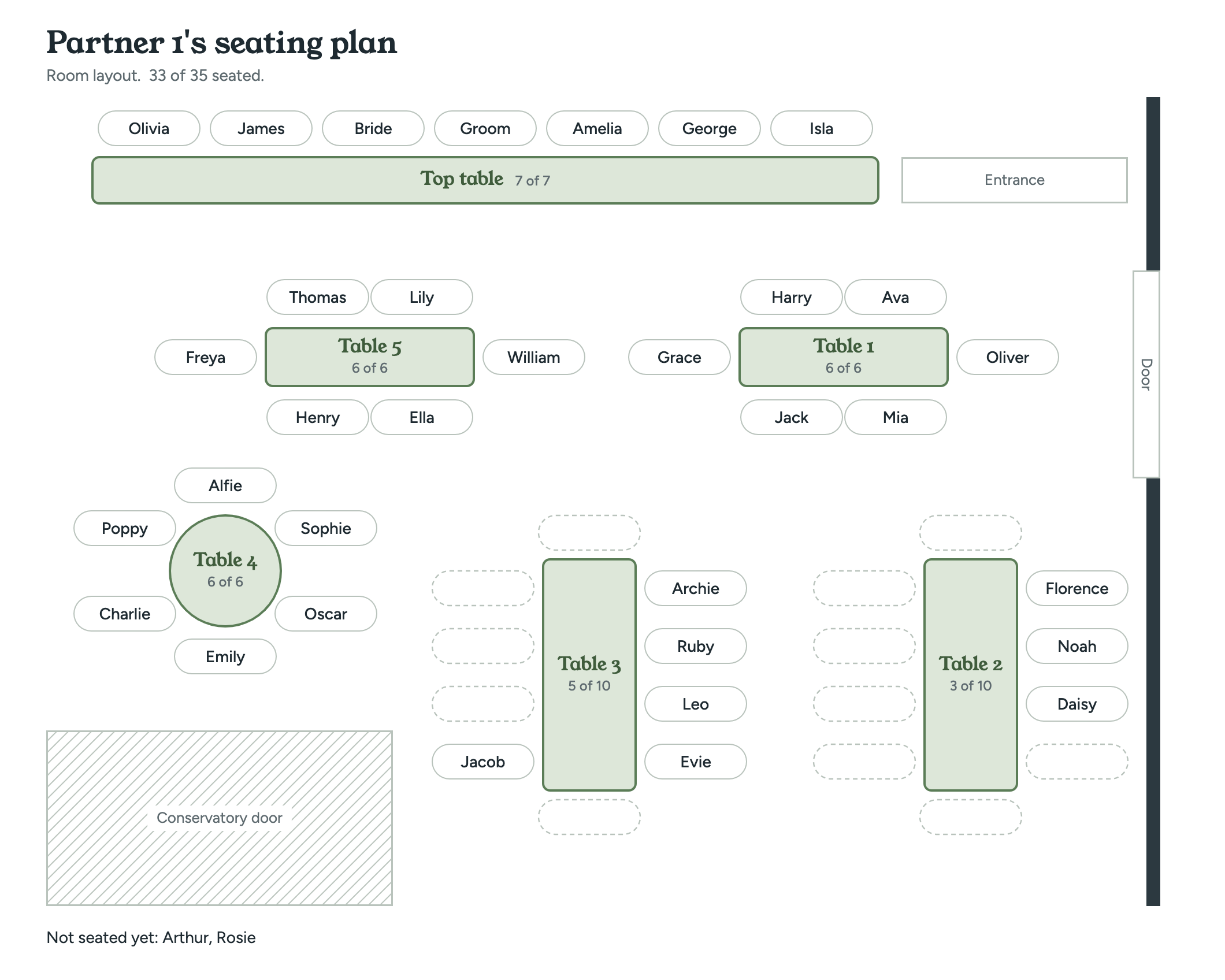
- checkA clean image of the room with every name at every seat, ready to print or send. Anyone not seated yet is listed underneath, so nobody gets forgotten.
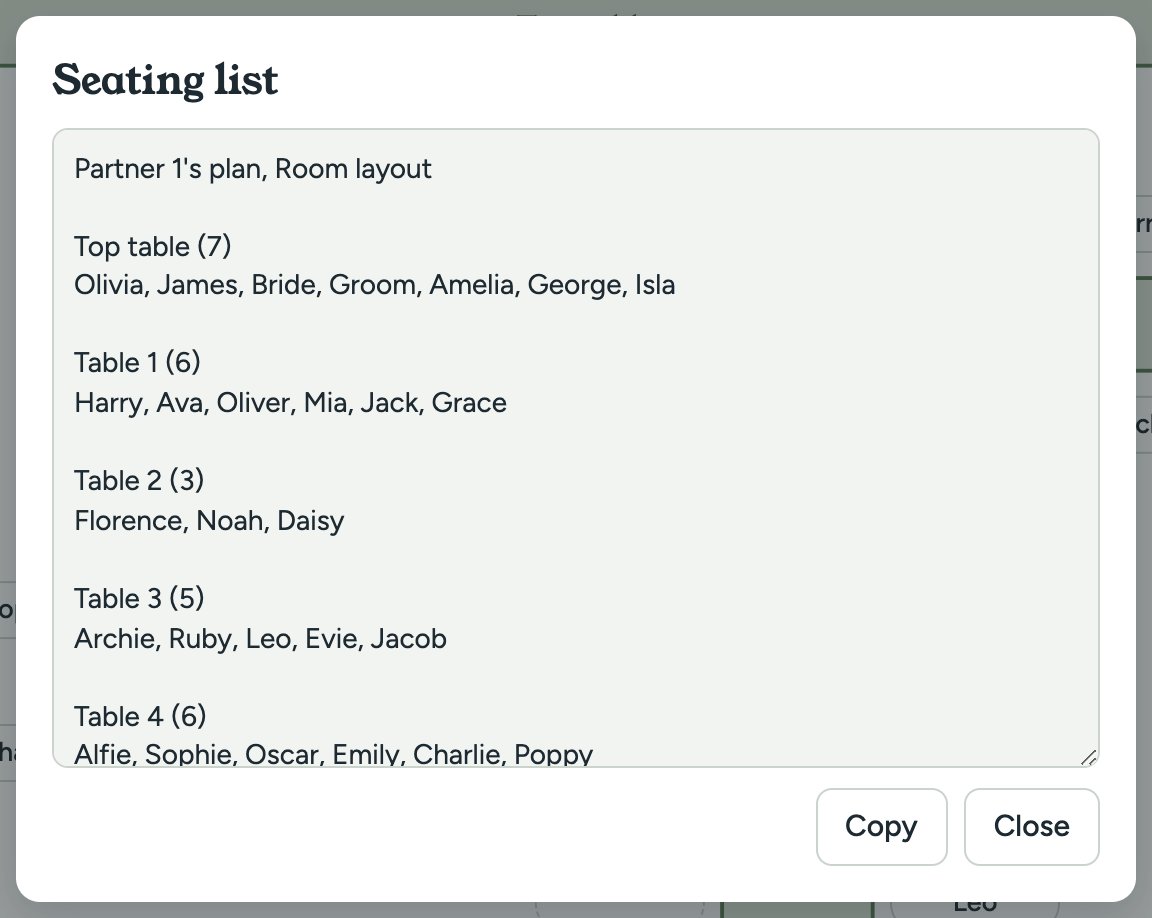
- checkA table-by-table list with a Copy button, to paste straight into an email to the events team and the caterer.
- checkHead counts per table, so the venue knows how many places to lay.
What This Replaces
| Before | After |
|---|---|
| Sticky notes on a sheet of paper | Names dragged onto the real room |
| Two partners, two versions | Two plans, compared in one click |
| Counting heads at every table | Every table counts itself |
| A photo of the paper sent to the venue | A clean image and a list to copy |
| Redrawing after every change | Change it once, export again |
What It Takes to Run
One page, nothing to install
It runs in any web browser, on a phone or a computer. No app to download.
Saves as you go
There is no Save button. The sample saves in your browser; the real one saves online and shares between the couple.
Nothing to sign up for
The sample opens straight away: no account, no app and no analytics.
Your room, drawn once
We draw each of your rooms from the floor plan, doors and all. Every couple then starts from the real room.
Where a Venue Could Take It Further
The same planner fits any event where people sit down together:
- checkEvery couple, every room. Offer it to each couple who books, with your rooms already drawn.
- checkMore than one layout. The planner can hold different arrangements of the same room, such as long tables or rounds, and switch between them.
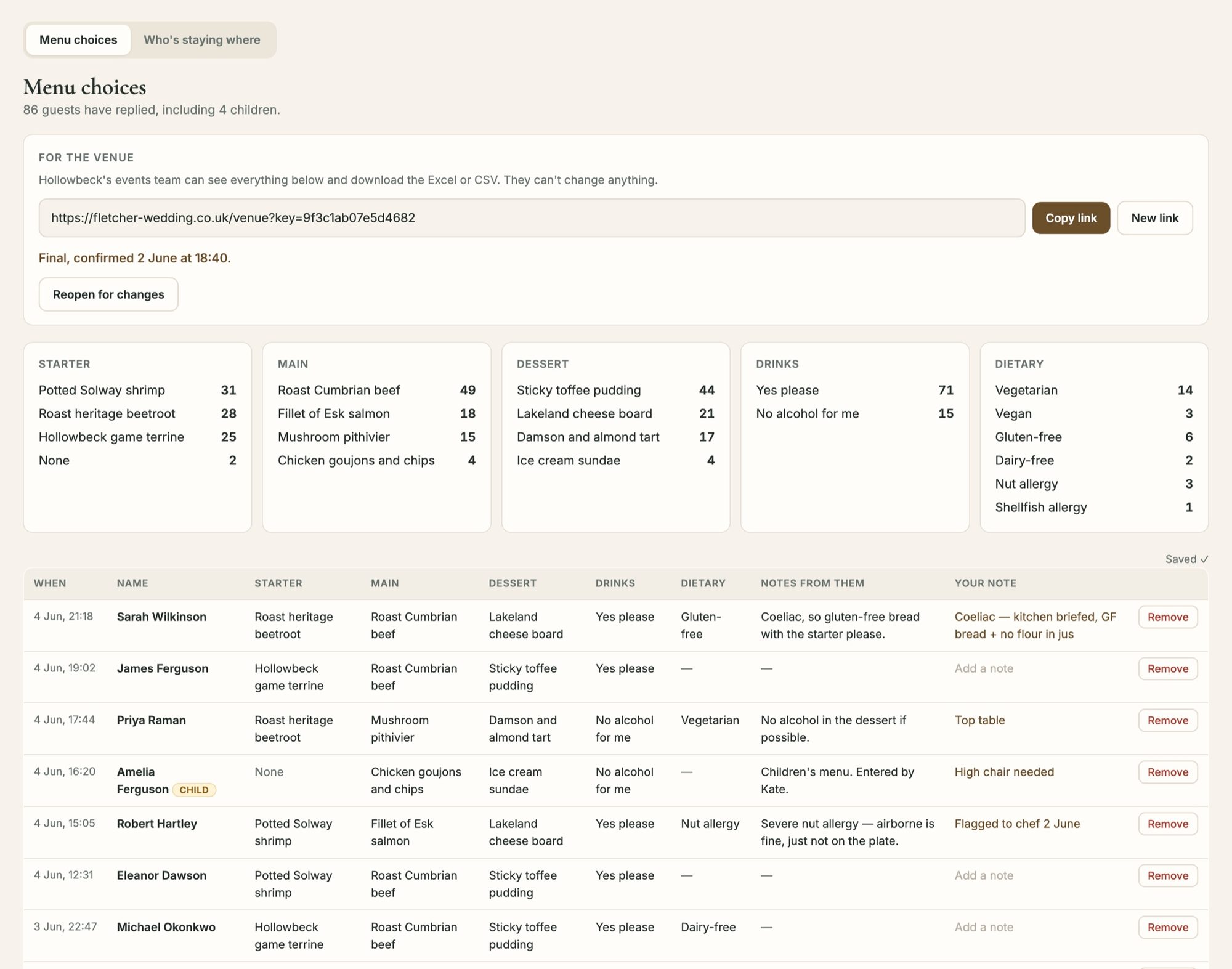
- checkJoined up with menu choices, so each guest's dish sits next to their name and the kitchen knows table 3 is two beef and a salmon. See the menu choices example.
- checkPlace cards and table cards, printed straight from the plan.
- checkChristmas parties and dinners, where a company books three tables and wants to choose who sits where.
Want This for Your Venue?
The sample is live, so try it first. Then tell us about your rooms, and we'll draw them in.